
 RamTV
RamTV  XazTube
 Page Builder - Content Widgets
Widgets that list and link the things in your catalogue
There are no indexing by default. Pages are empty when created and you can fill them with different widgets. Content widgets can be used to display and link content in different ways. A few styles & many filters are available to help you index your content exactly the way you like
Supported objects
By default, there are only a few ( 5 to be exact ) content widgets available in Page Builder. As you install plugins & tools & themes Page Builder becomes upgraded with newly provided widgets. For example when you install "Music" plugin, 6 content widgets ( album, artist, track, genre, tag, language ) are automatically added to Page Builder
Content widgets usually have 4 tabs of configuration. You can use them to change widget's interface, content or behavior
Tab: General
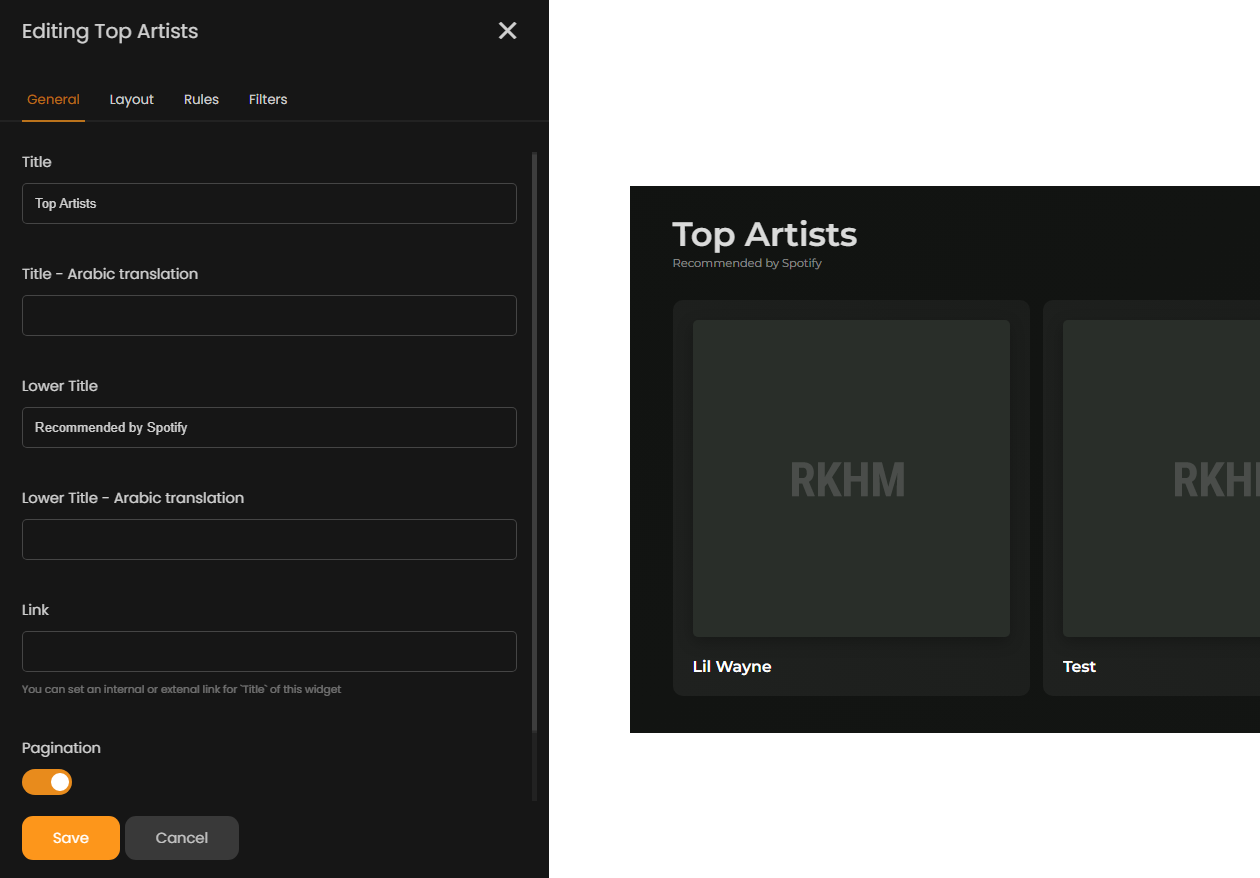
- Title & Lower title: Titles of widget, displayed as image above. If you have added secondary languages, you can also enter translations
- Link: User will be redirected to given link if they click on title
- Pagination: Enabling this option will make widgets browsable. Users will be redirected to a new page filled with content related to filters if they click on title
Tab: Layout
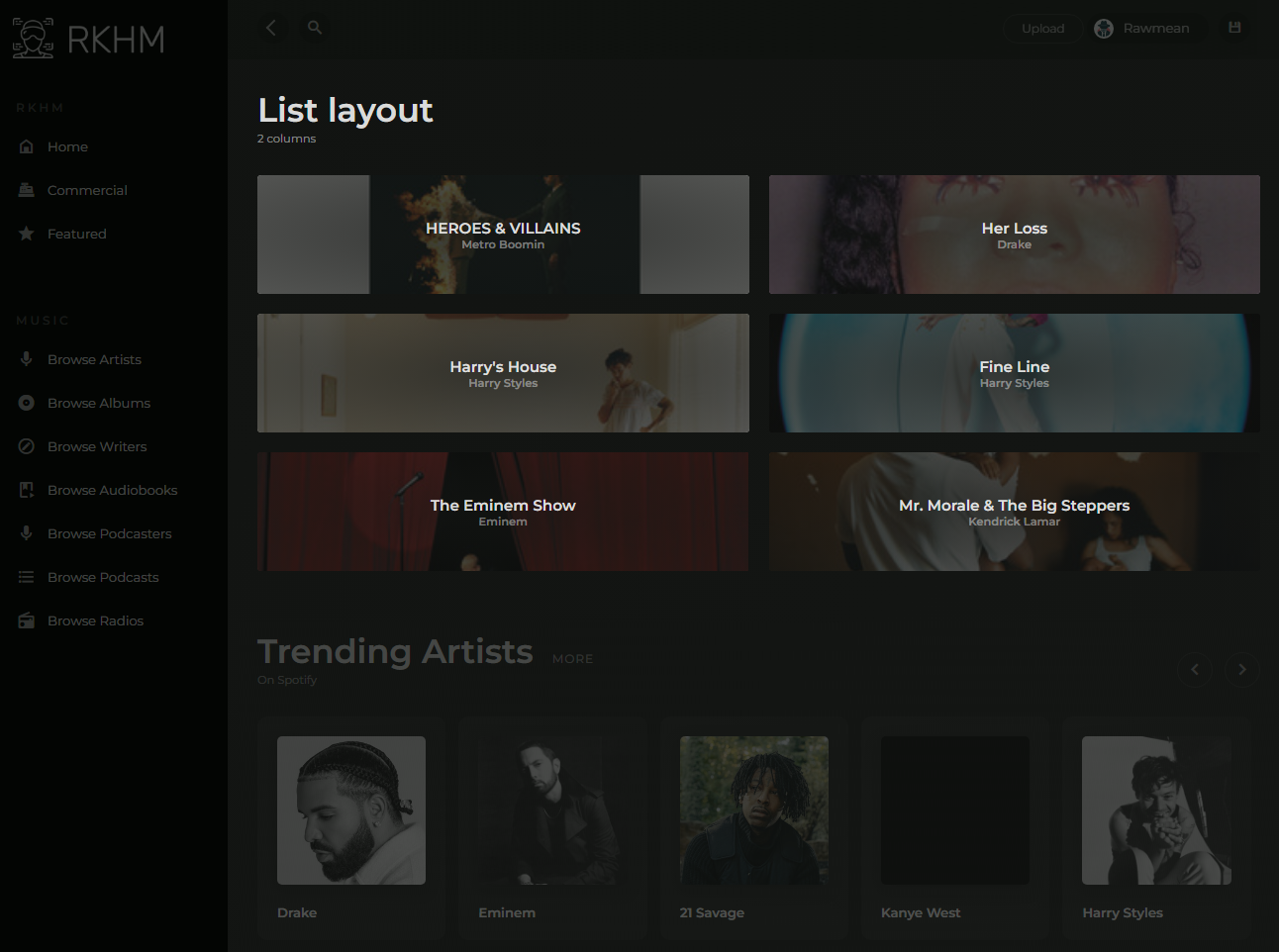
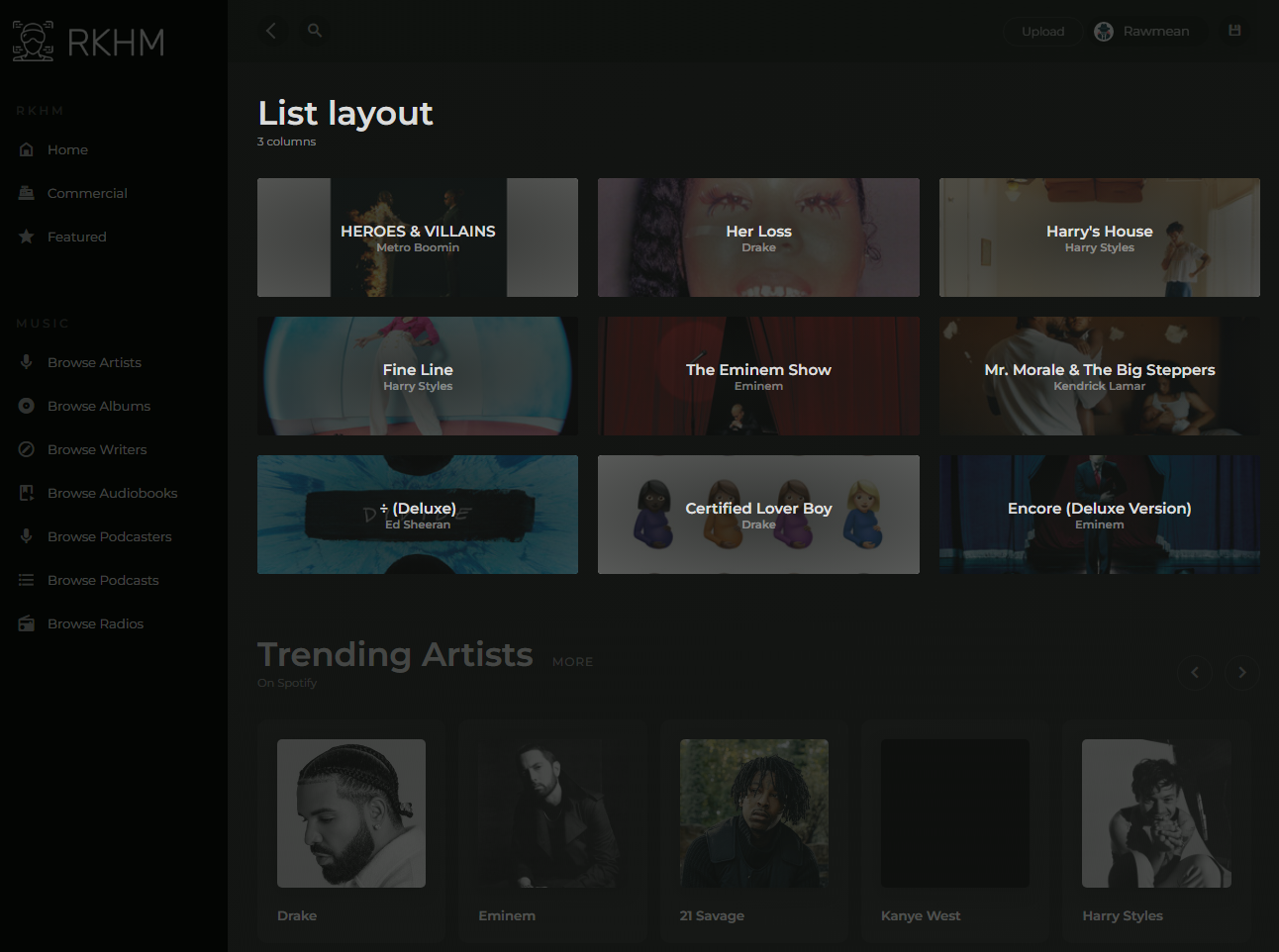
Content widgets currently support 3 types of layouts: slider, list & table. Each one has separate setting & design. You can find some visual examples on how each layout with different setting looks in below images
Slider layout
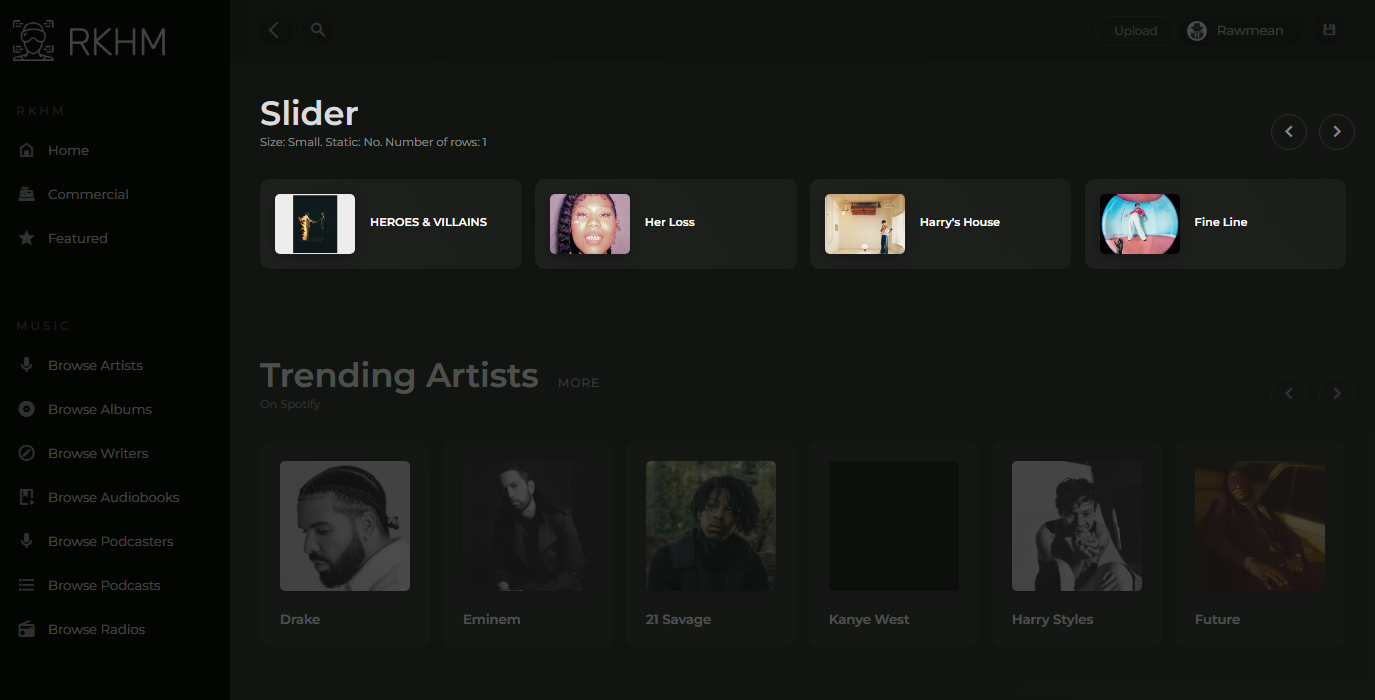
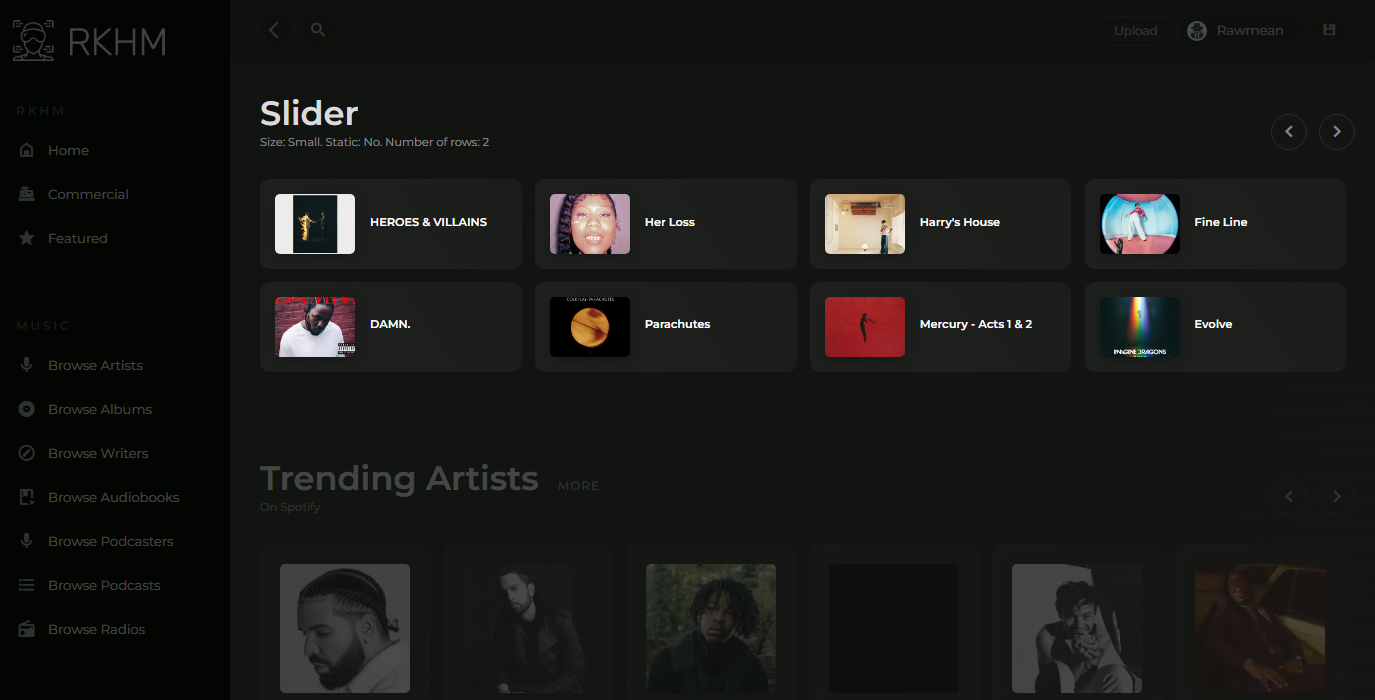
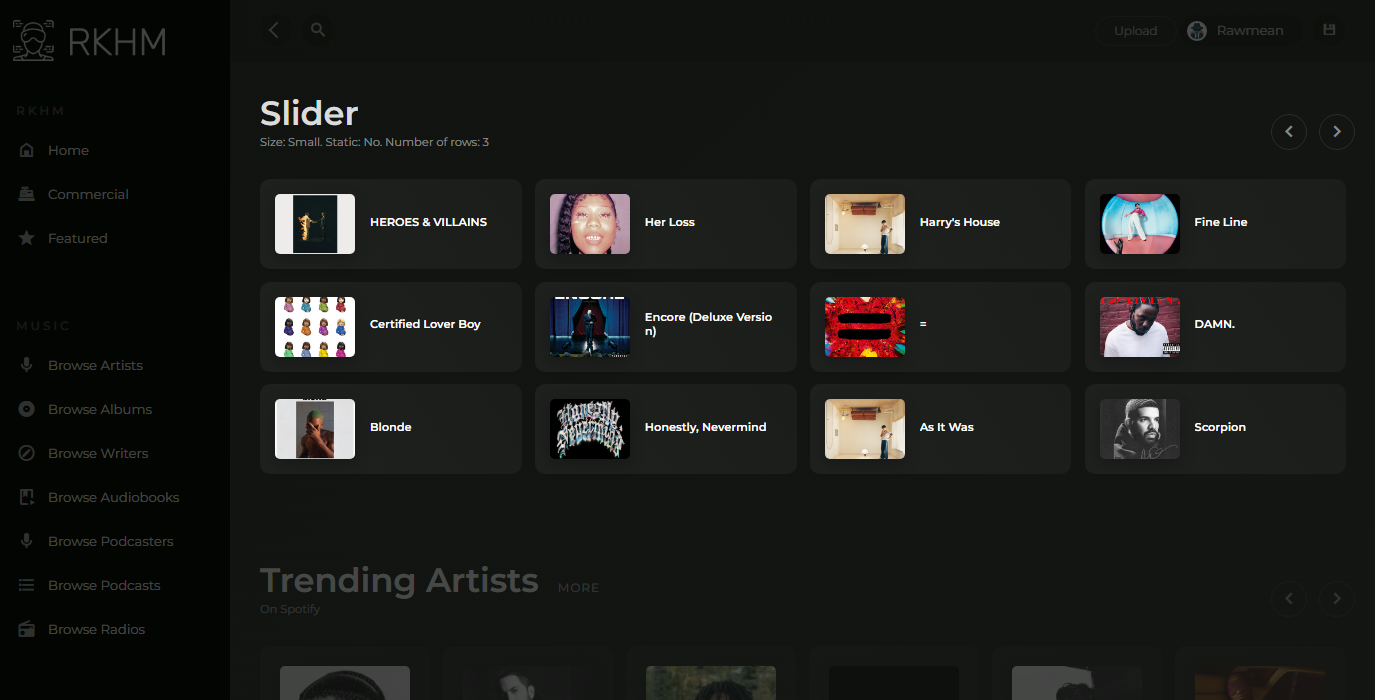
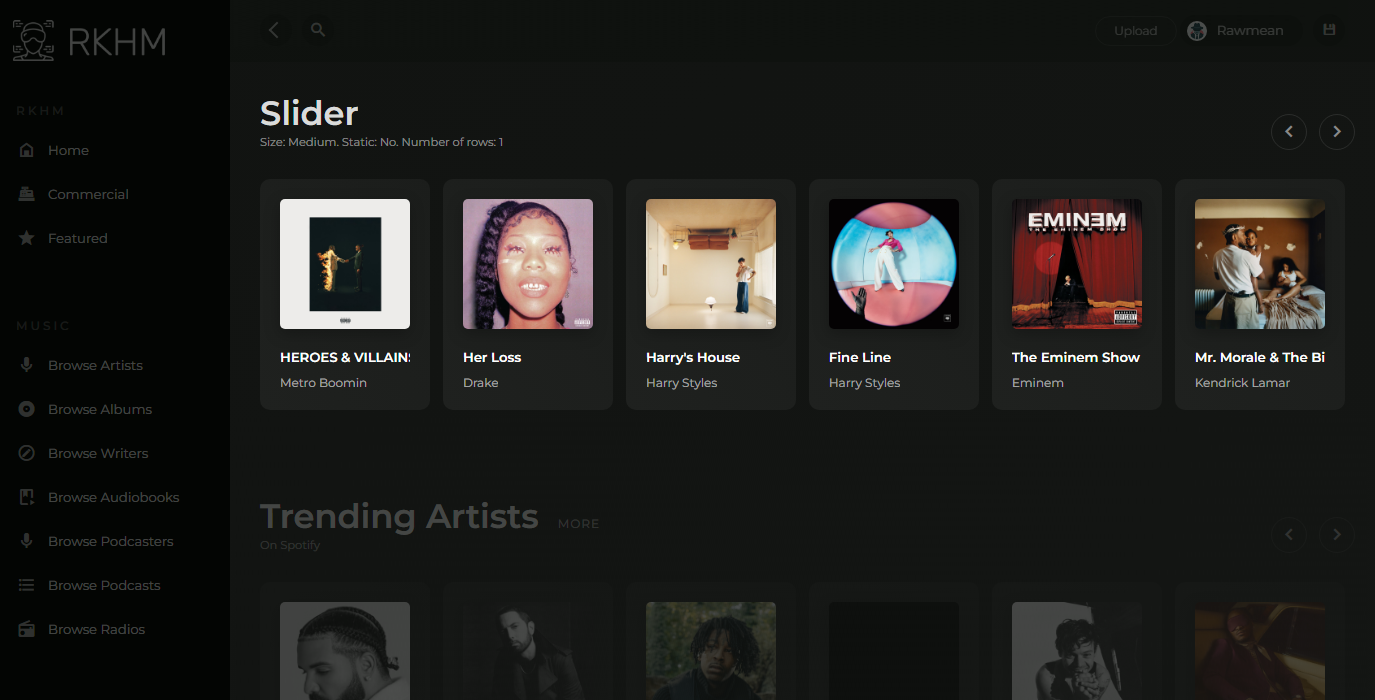
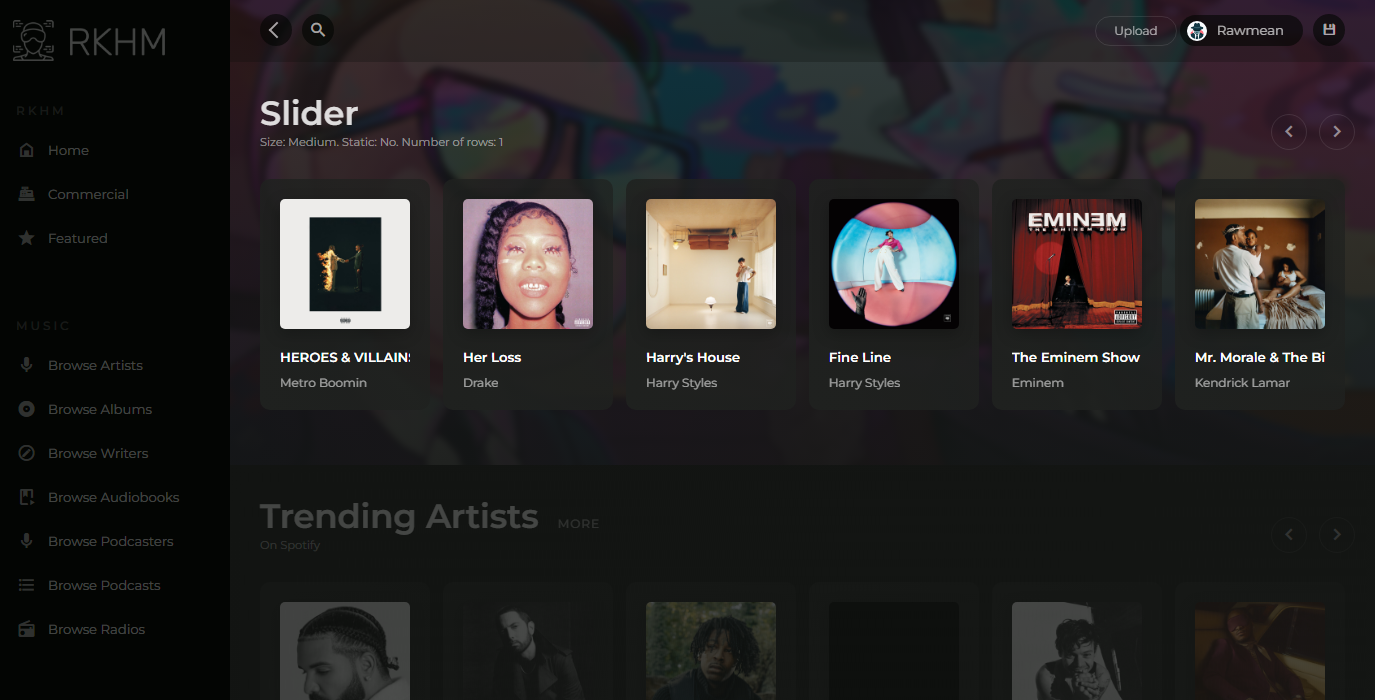
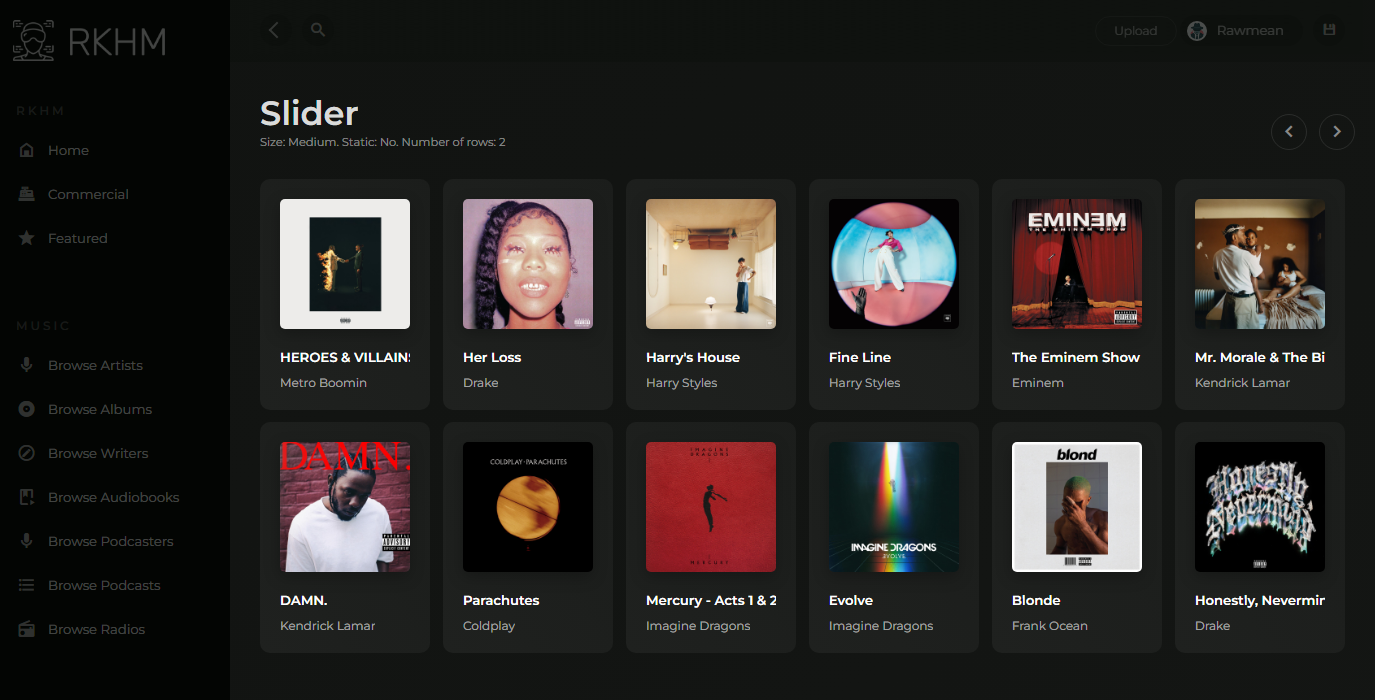
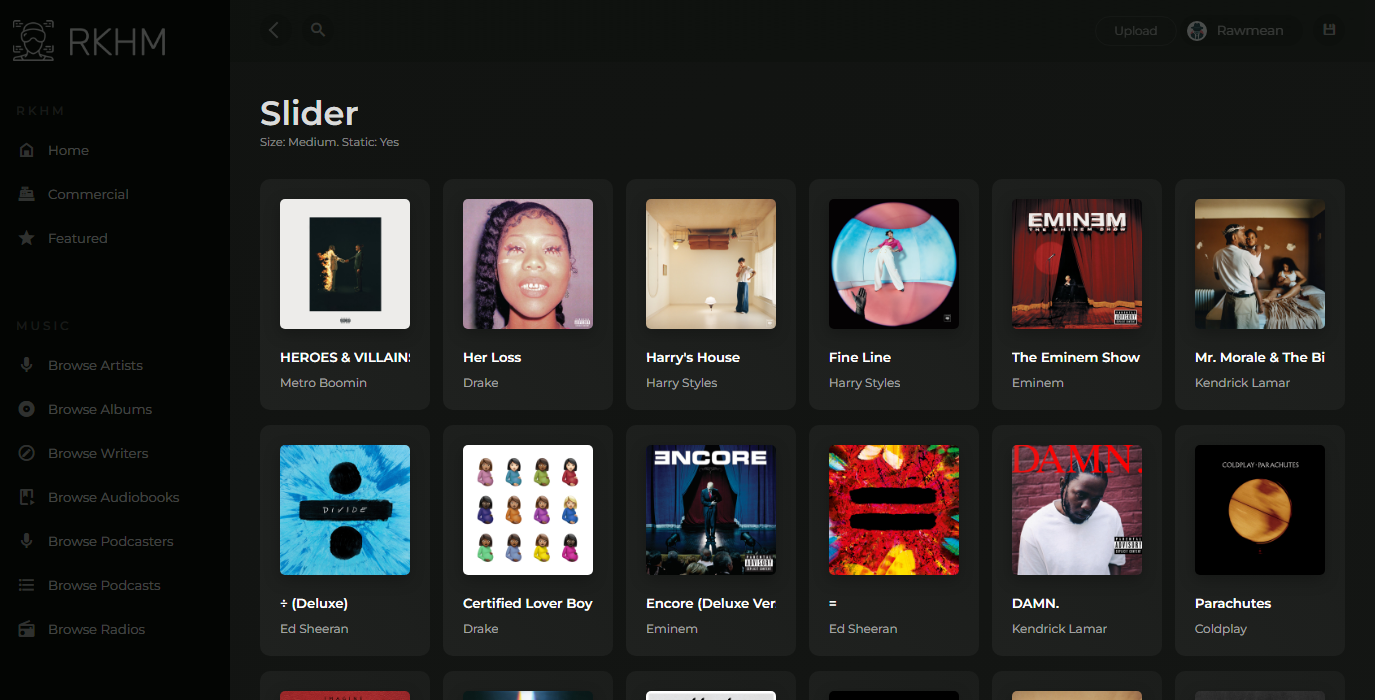
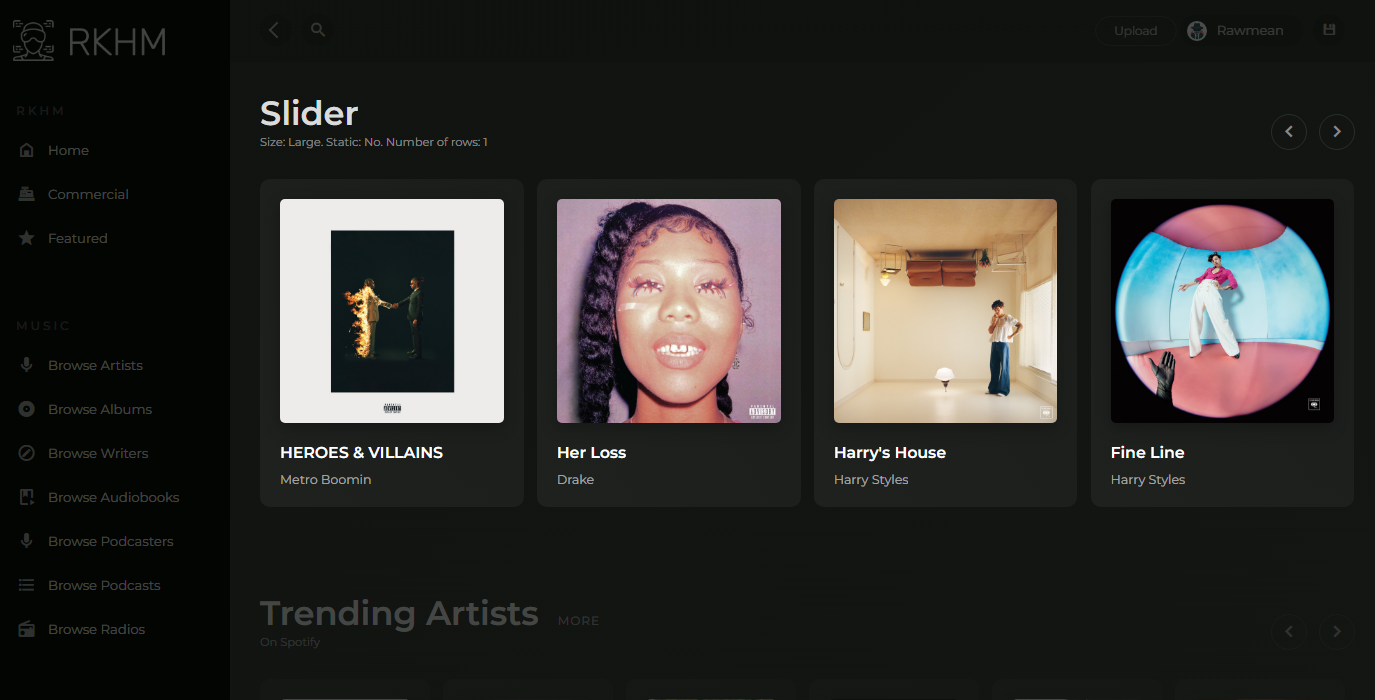
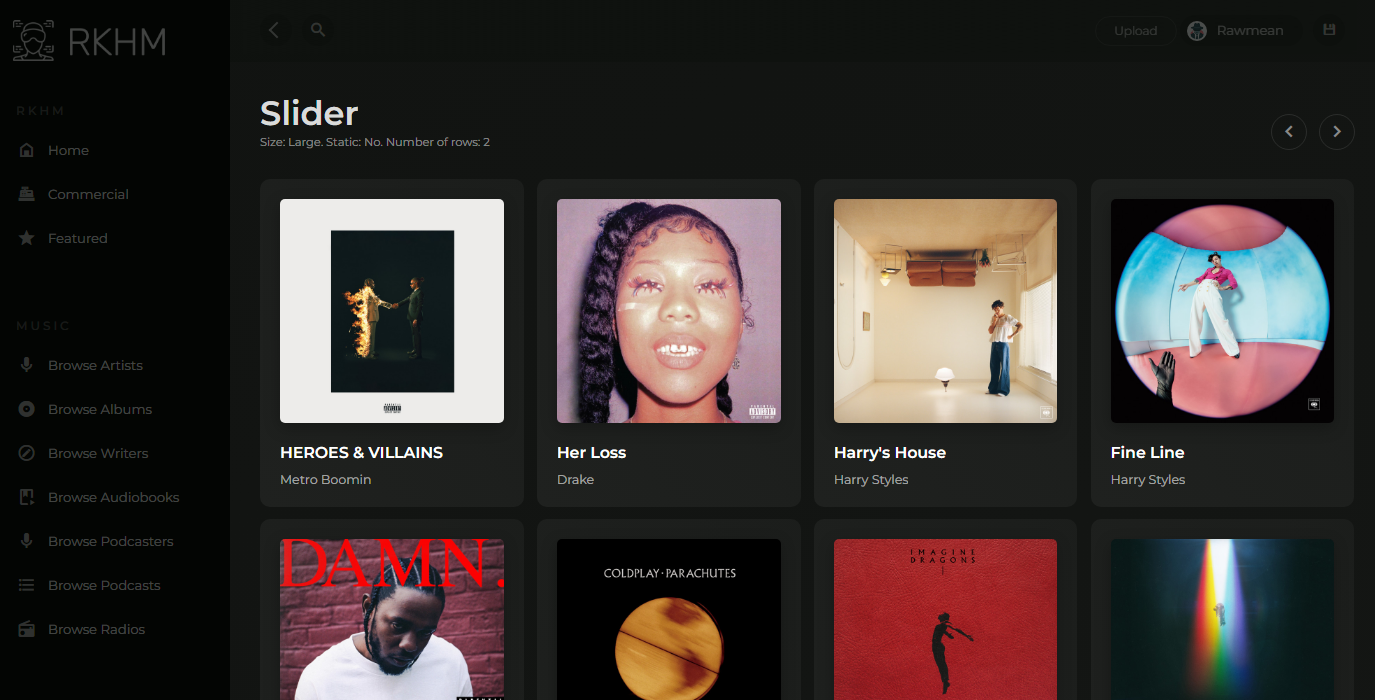
Table layout
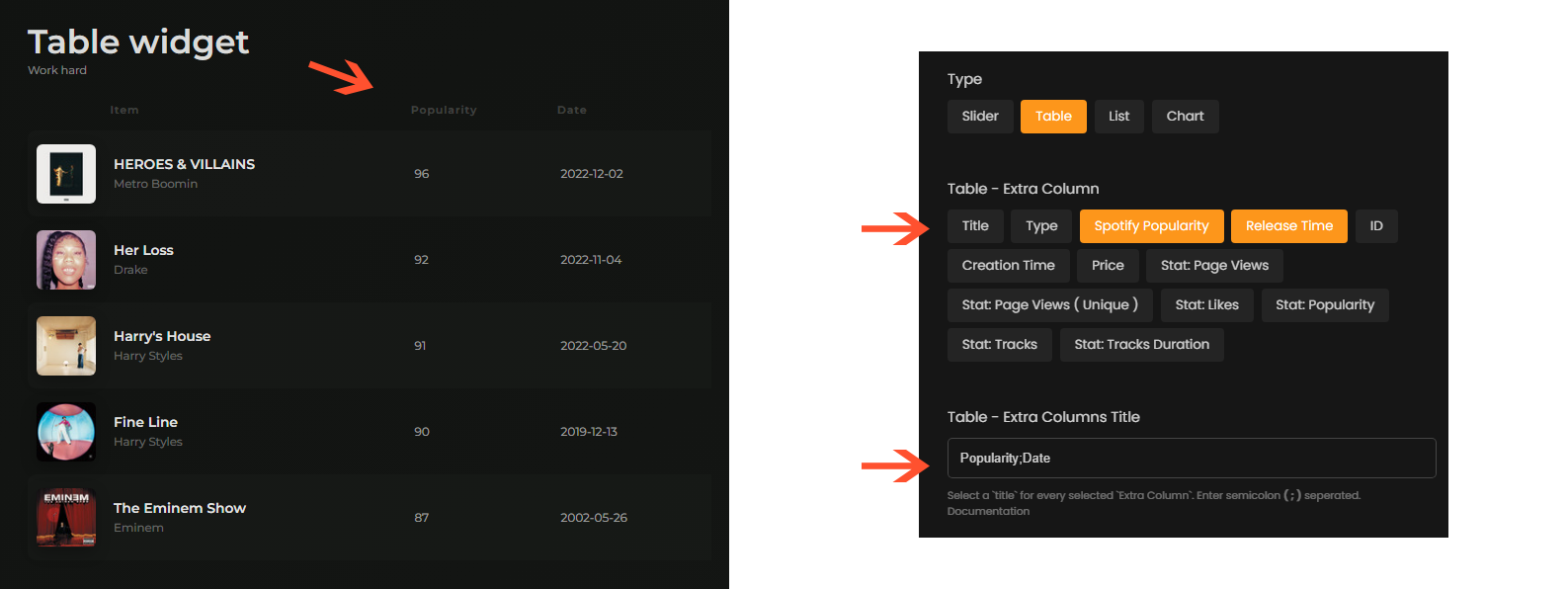
You can also display items in form of tables. First column will be filled with the title & lower-title & cover of item. Last column will become buttons and you can choose what do display in between. In order to select columns:
- Edit your content widget in Page Builder
- Select "Layout" tab, choose "Table" as "Type". New options ( Extra columns, Extra columns titles ) will appear
- Select some "Extra columns". We don't suggest more than a few for display sake
- Enter a title for each selected columns in "Extra columns titles" input. Separate these titles with a semicolon ;
List layout
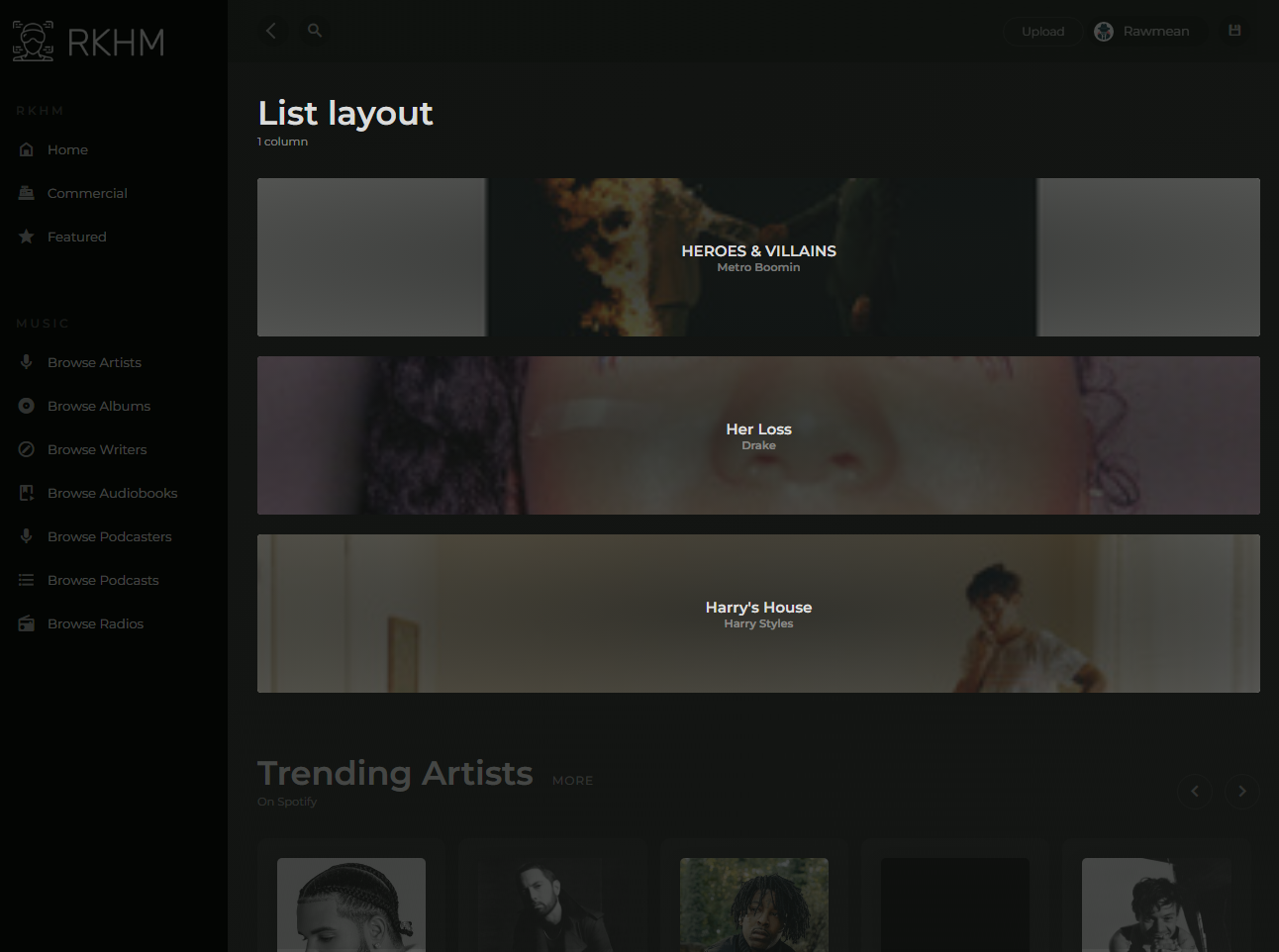
Tab: Rules
You can set rules for widgets. The widget will only appear if rules check out. You can use these rules to display certain widgets for certain users
Tab: Filters
In this tab, you are able to filter widget's content. For example you can choose to display tracks belonging to a certain genre, you can do that by setting that genre as a "Music Track" widget's filter