 RamTV
RamTV  XazTube
 Lorem AI
Generating art, copy and metadata in place
Lorem AI functions as an RKHM plugin, designed to assist you in generating relevant data and image for your items. For example, it can ask OpenAI for information like birthday, birth country, biography, and other details related to Eminem then updating the corresponding data for Eminem. It can also improve your SEO by generating better SEO titles/description for your items. You have the flexibility to alter the OpenAI prompt to obtain a customized response
While the examples given in this article are mostly music based, Lorem AI is not limited to music and can generate content for podcast, podcaster, radio station, audiobook, writer, translator as well as music album, track & artist
We added support for Prodia ( Stable Diffusion ) and DeepAI on version 1.0.04 of Lorem AI. These services are suitable for generating image. They are cheaper than OpenAI and can produce much better result
How to use Lorem AI?
Begin by obtaining your API keys from OpenAI. Upon registration, you will receive $5 in free credits for API testing purposes. Pass the keys to RKHM in `Admin -> Setting -> Lorem AI -> AI APIs Setting`
After setting the key, you need to either run the Lorem AI for your items manually and one by one, or you can set filters and let RKHM run it in background for you
- Automatic Setup: Enable Lorem AI to run seamlessly in the background using cronjobs. Navigate to `Admin -> Setting -> Lorem AI -> Setting` and activate the object types you want to generate.
- Manual Generation: For specific content types, like music artists, go to `Admin -> Content -> Music -> Artist`, click on the three dots next to your chosen artist, and select `Lorem AI - Run` from the dropdown. Wait for the process to complete, and review the results.
How to configure Lorem AI & prompts?
Access settings at `Admin -> Setting -> Lorem AI -> Setting`. For specific content types, click on the object name in the Lorem AI menu. In the object page, customize item selection by setting filters for content, such as running Lorem AI only for HipHop genre music artists. Without filters, all items will be chosen. Edit the main prompt and specific attribute prompts. All this data will be combined into a final prompt sent to OpenAI. For example, for `Music artists`, final prompt will look like this:
"You are given an artist name. Analyze for following information and return them in JSON format
-bio_birthday: Birthday of artist in yyyy/mm/dd format
-bio_city: Name birth cirty of artist
-bio_content: Create an artist Biography
-bio_country: Name birth country of artist
-bio_deathday: If artist is dead, return death day in yyyy/mm/dd format
-bio_name: Real (legal) name of artist
-m_artist_genres: Artist genres. Separate with ;
-m_artist_tags: 5 Tags for artist. Separate with ;
-seo_slug: Create a search engine friendly, relevant SEO-SLUG. Make it long & funny
-seo_title: Create a short, search engine friendly title
-seo_description: Create a short, search engine friendly description
-seo_tags: Create 3 search engine friendly tags. Separate with ;
Just respond with the raw JSON string"
Once the request is dispatched to OpenAI, RKHM utilizes the received data to modify the information related to the music artist. Any adjustments made to the main or specific action prompts directly impact the final prompt sent to OpenAI, influencing the resulting content. For instance, altering the language of prompts or specifying a language for OpenAI's response will be reflected. If you request content tailored for a younger audience, the system will simplify the generated content accordingly. You might ask OpenAI to be funny with the results, and it will. Experiment with prompts to obtain content that aligns with your business needs.
How to experiment with prompts?
We've provided default prompts to get you started with Lorem AI, generating acceptable results. However, the essence of using AI is customization. Tailor it precisely to your preferences – your style, your preferred format. We highly recommend experimenting with prompts before fully committing.
You can test your prompts before enabling automation for large scale by:
- Change Lorem AI setting in `Admin -> Setting -> Lorem AI -> Setting`. You can change OpenAI model, or specific object prompt
- After changing the setting, manually run the Lorem AI ( explained above ) and check the result
- If you liked the result, enable automation ( explained above ). If you did not like the result, repeat these steps
Playground
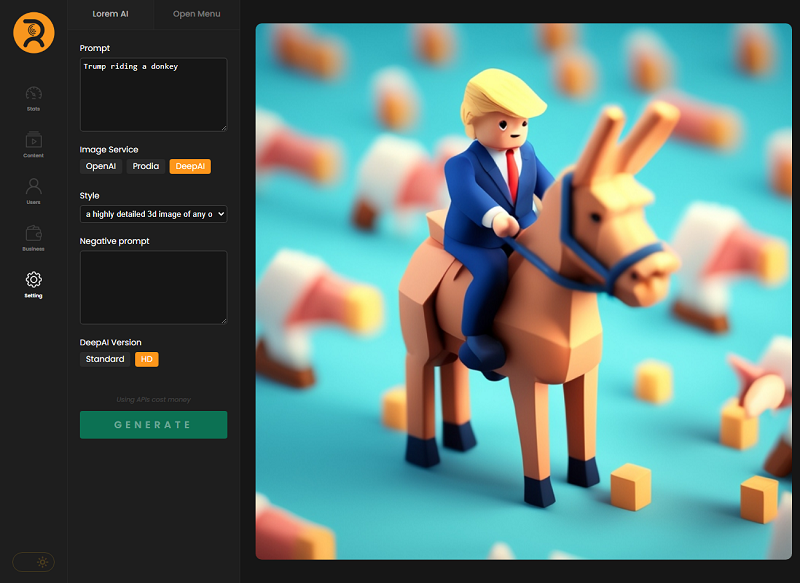
For version 1.0.04 we added playground to Lorem AI which allows you ( the admin ) to test your image prompts with different service/model/configuration. Visit "Admin -> Setting -> Lorem AI -> Playground" to access it. You can get prompts and ideas from websites such as freeflo.ai or civitai.com, test them with playground, if you liked the result, change the subject in prompt with %query% and save it as a default prompt for Lorem AI, P0dCr8 or etc
Examples
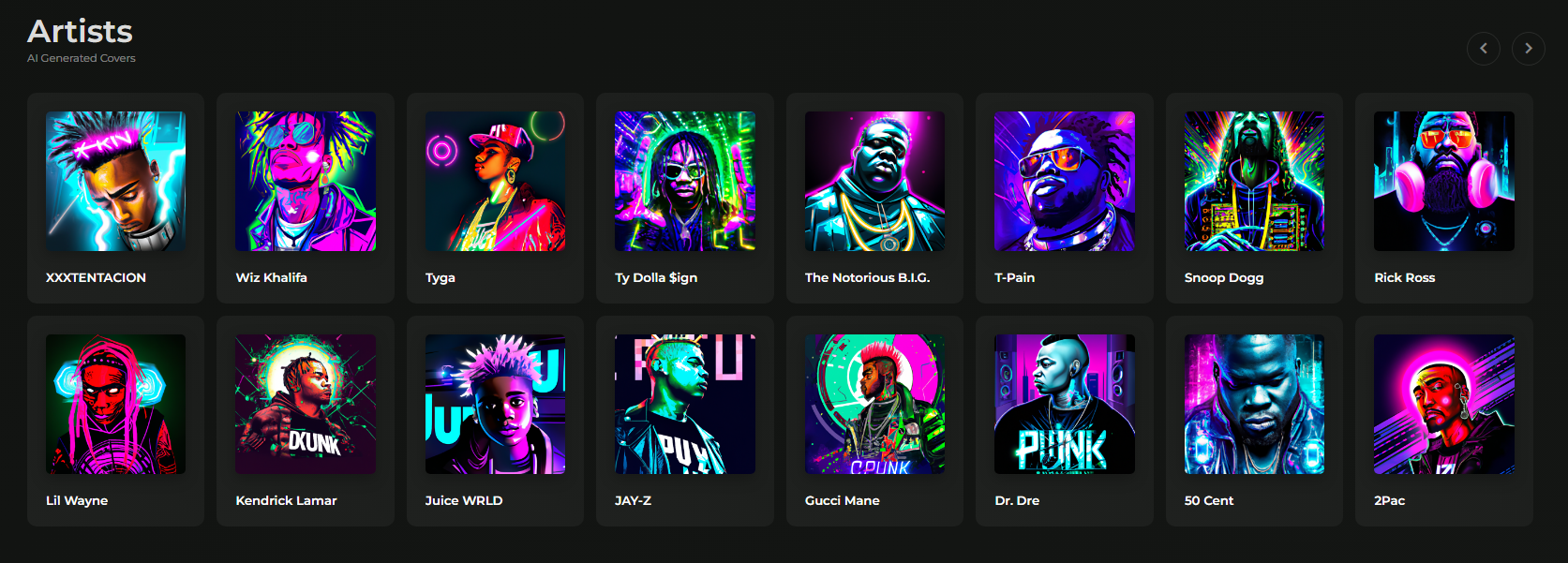
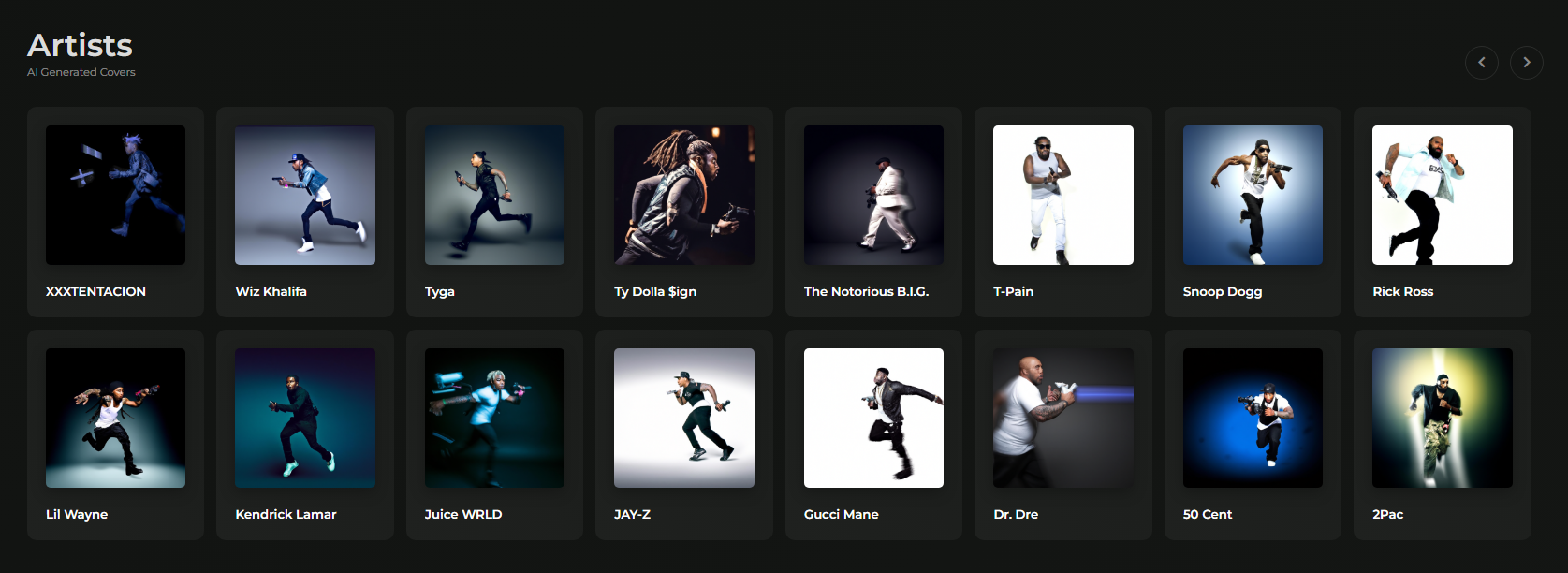
Most of the artist images and book covers in our audiobook demo website ( audiobook.c.d.busyowl.co ) is generated by OpenAI's DALL-E version 2