
 RamTV
RamTV  XazTube
 NFT
Token-gated albums and the secondary market
Click here for a guide on purchasing NFTs through the RKHM + NFT plugin
Click here for a guide on deploying and selling NFTs through the RKHM + NFT plugin
The NFT Plugin for RKHM transforms your platform into a blockchain-powered marketplace, enabling creators to sell music albums as NFTs. These NFTs act as both collectible assets and keys to unlock exclusive content on your RKHM. Buyers can trade these NFTs on major marketplaces like OpenSea while maintaining access control to the album content within your platform
Key Features
- NFT Album Creation: Admins, uploaders, and managers can deploy smart contracts to sell their music albums as NFTs on supported EVM blockchains
- Blockchain Payment Processing: Users can purchase NFT albums with blockchain-based payments, ensuring funds are transferred directly to your wallet without intermediaries. You have the option of using good old Paypal ( & stripe & etc ) as payment gateway too
- Album Access Control: The NFT doubles as a key to access the album on RKHM. Ownership of the NFT determines access rights; transferring the NFT revokes access for the previous owner
- Marketplace Compatibility: Deployed NFTs adhere to blockchain standards, making them sellable on marketplaces like OpenSea
Requirements
To use the NFT Plugin, ensure the following prerequisites are met:
1. Active Installation of RKHM
Install and update RKHM to the latest version. Follow the RKHM installation documentation [doc link] for detailed instructions
2. Node.js Installed on Your Server
Node.js is required to securely interact with blockchain networks, enabling contract deployment, payment verification, and NFT transfers
After installing Node.js, configure it in RKHM:
Go to Admin -> Setting -> CLI apps
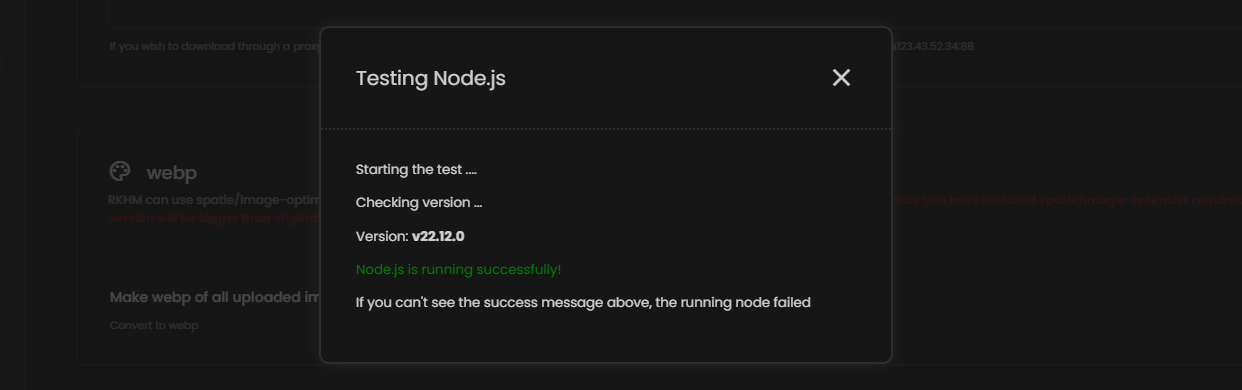
Enter the Node.js path and use the test button to verify access
3. Exchanger Wallet Setup
Create a new EVM-compatible wallet to act as the exchanger account for NFT transfers
Add the wallet address and private key to RKHM in Admin -> Content -> Web3 -> Setting
Ensure the exchanger wallet has enough gas funds to handle NFT transfer fees
Step-by-Step Setup Guide
1. Install and Update RKHM
- Install RKHM and ensure it’s updated to the latest version
2. Install the NFT Plugin
- Navigate to the plugins section in RKHM and install the NFT Plugin
3. Create an Exchanger Wallet
- Generate a new EVM-compatible wallet to act as the exchanger
- Copy its address and private key, and paste them into Admin -> Content -> Web3 -> Setting
- Ensure this wallet has sufficient funds to cover gas fees for NFT transfers
4. Set Up a Receiver Wallet
- Input your real wallet address in the Web3 settings page to receive blockchain payments directly
5. Install and Configure Node.js
- Install Node.js on your server and verify its installation by entering its path in Admin -> Setting -> CLI apps
- Use the test button to ensure RKHM can execute Node.js commands
6. Configure Blockchains
- Go to Admin -> Content -> Web3 -> Chains and activate the chains you want to support
- Enable the "Deployable" option for chains where users can deploy NFT albums
- Enable the "Payment Gateway" option for chains to process user payments
- Ensure the currency of the activated chains exists in your RKHM currency list (Admin -> Business -> Gateways -> Currency List)
7. Customize Solidity Contracts (Optional)
- If you’re familiar with Solidity, visit Admin -> Content -> Web3 -> Solidity Files to modify or add new smart contracts
- DO NOT make changes unless you understand the Solidity language

8. Adjust User Permissions
- By default, only admins can deploy contracts. To allow other user roles (e.g., managers or uploaders) to deploy contracts, update their role permissions in the User Role page

9. Enable Additional Payment Gateways (Optional)
- Besides blockchain payments, you can enable traditional payment gateways like PayPal or Stripe. Configure these in Admin -> Setting -> Business -> Payment Gateways
10. Protect Audio Files with HLS Encryption (Optional)
- Enable HLS encryption to prevent unauthorized access to uploaded MP3 files. Configure this in Admin -> Setting -> Files -> Upload Setting
Chains Configuration
Chains in RKHM allow you to customize blockchain functionality for deploying NFTs and processing payments. Configure these settings to suit your platform's needs:
Accessing Chains Configuration
Navigate to Admin -> Content -> Web3 -> Chains
Enabling Chain Options
For each chain, you can enable the following:

Deployable
Allows users to deploy NFT albums on this chain
Activated chains appear on the "Launch New NFT" page.
Payment Gateway
Enables the chain for processing payments
Activated chains are available as payment options when users purchase NFTs or add funds
Ensure the currency of the chain is added to RKHM’s currency list in Admin -> Business -> Gateways -> Currency List

Additional Fee Configuration
- You can set specific fees for using each chain as a payment gateway to cover operational costs

Using Infura RPC (Optional)
If using Infura RPC instead of public RPCs, ensure:
- Accurate API keys are entered
- Supported blockchains are activated in your Infura account
Note: Infura does not support all EVM-compatible chains
By configuring these options, you can support multiple blockchains for NFT deployment and payments, offering flexibility and scalability to your users
Cronjobs
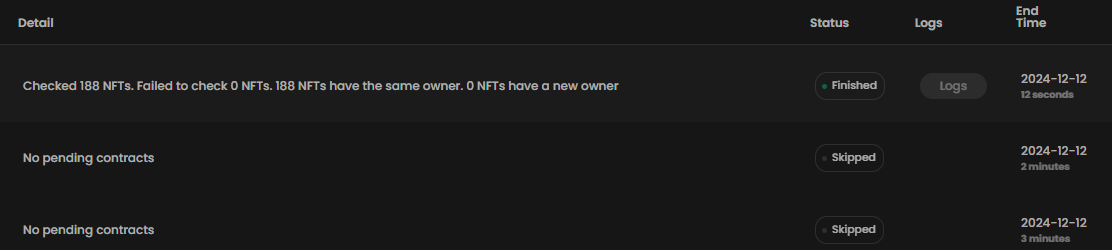
NFT plugins adds 3 new cronjobs:
1. Contract Validator Cronjob
This cronjob monitors users' attempts to deploy smart contracts and performs direct validation on the blockchain to ensure compliance and correctness
2. NFT Owner Checker Cronjob
This cronjob continuously monitors the ownership status of NFTs and synchronizes changes with your RKHM CMS whenever an NFT's ownership is updated on the blockchain
3. Payment Validator Cronjob
This cronjob ensures that payments made through the NFT plugin’s blockchain gateway are properly validated and processed.
Important Notes
- Payments: Users can make payments using any of the enabled payment gateways. The main price of an NFT could be $10 or 10 ETH, and if Polygon is enabled as a payment gateway, users must pay the equivalent amount in POL (Polygon's native token) for the NFT, whether it's $10 or 10 ETH. Please ensure that test blockchains, such as Sepolia, are disabled as payment gateways before going live!
- Access: Not all users are authorized to deploy items as NFTs. Only uploaders and managers of a priced music album who have the "Web3 - Deploy Contract" permission assigned to their user role are allowed to deploy contracts for music albums
- Revenue: While all users can set a price for their uploaded content, only verified managers are entitled to a share of the sales. Ensure that your RKHM is designed to route users through a verification process before allowing them to upload or deploy NFTs, especially if you plan to pay them their share of the revenue. Also sellers receive their share as funds in their wallet in RKHM, then they can submit withdrawal requests which you can process