
 RamTV
RamTV  XazTube
 V2.0.67
We've made major changes in RKHM v2.0.67 that we felt needed a dedicated explanation.
This update primarily focuses on mobile devices. v2.0.67 will be released simultaneously with the Android app. We've put a lot of effort into the mobile native apps and have worked to bring as much of the design as possible to the PWA version as well.
UI Changes
Navbar
Before v2.0.67, admins could edit the menu linked to the mobile navbar through the "MenuBuilder" by editing the menu linked to mobile's navbar ( selected in Admin -> Setting -> Theme setting ). The first three menu items were automatically selected and displayed in a five-item navbar at the bottom of mobile devices, while the last two items (Notifications & User Menu) were fixed and could not be changed.
Starting in v2.0.67, the navbar system has been completely reworked. The menu previously connected to the mobile navbar via theme settings is no longer used in the navbar itself. Instead, it has been transformed into a slide-in sidebar that users can access using a handler at the top of their mobile screens. Admins can edit links in this menu by using MenuBuilder
Now, all navbar items can be fully customized in the Admin -> Setting -> Mobile page. Simply choose how many items to display (4 or 5) and configure each one individually. You can select functional buttons (Notifications, In-App Downloads, Mobile Sidebar Opener, User Menu), important pages, or even set a custom item with manual text, an icon, and a URL.
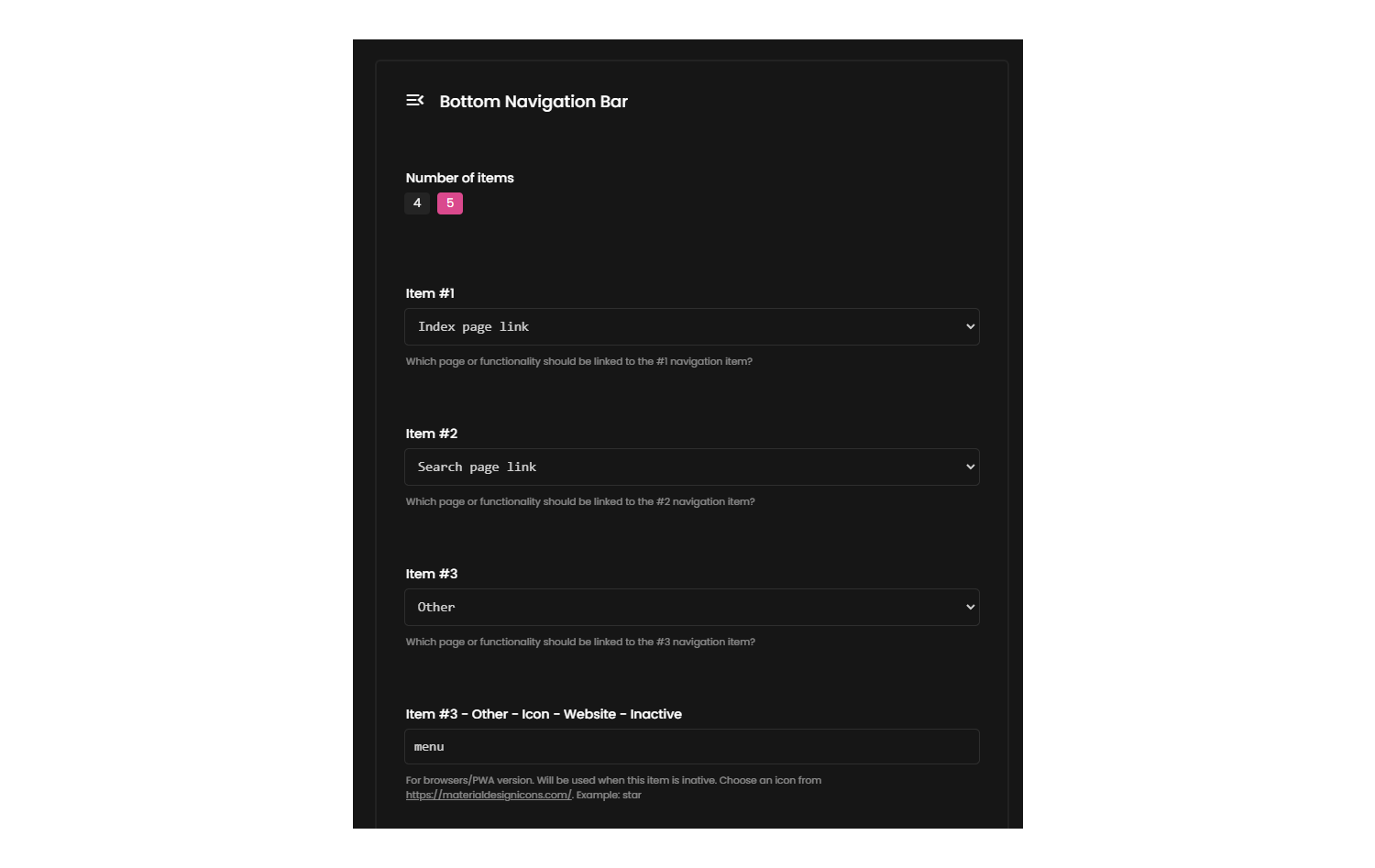
Header
In v2.0.67, a floating header has been introduced in the mobile version. It includes:
- Mobile logo, menu opener, and search icon on the left
- User dropdown and additional buttons on the right
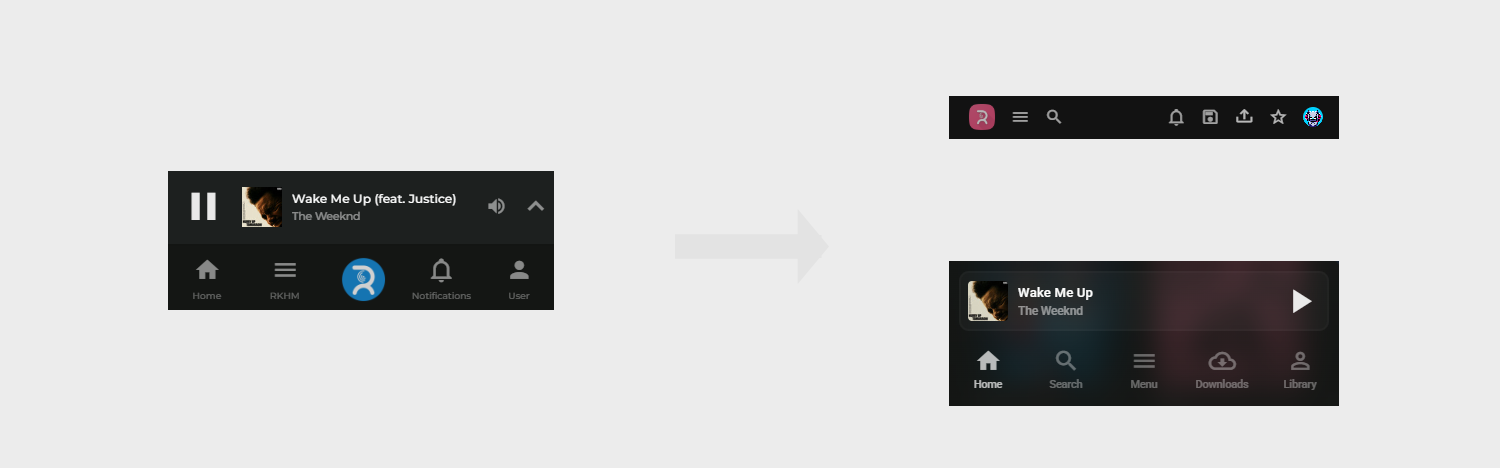
You can manage which items appear in the top-right section via the "Theme Settings" page.
Additionally, when users navigate to secondary pages, some header buttons are hidden, and a "Back" icon replaces them for easier navigation.
The header behavior has also changed:
- When scrolling down, the header remains fixed.
- When scrolling up, the header follows the user for better accessibility.
Player & Queue
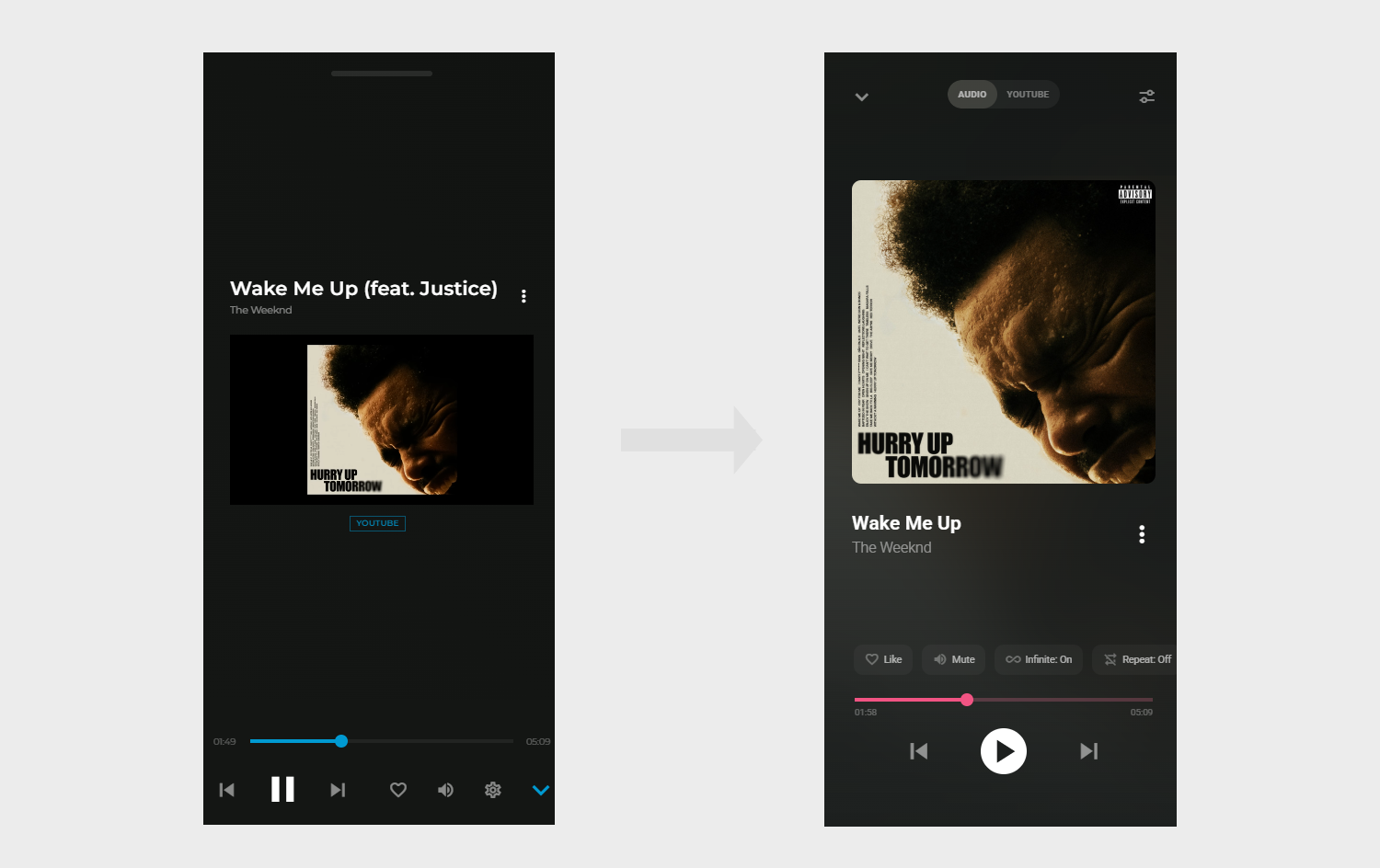
We have completely reworked the player's UI/UX
Notes
- Make sure you visit the new "Mobile setting" page ( Admin -> Setting -> Setting -> Mobile ) and set your navbar items
- Make sure you visit the "Brand setting" page ( Admin -> Setting -> Setting -> Brand ) and upload your mobile logos ( The display location is changed and now you can upload a secondary logo for white theme as well )
- The font selected in "Theme setting" page is now ONLY used in desktop/browser versions. The mobile version on PWA uses "Roboto" and native apps use "Montserrat "