
 RamTV
RamTV  XazTube
 Subscription System
Plans, pricing and what each tier unlocks
With RKHM, you can create customized plan(s) with varying levels of access and pricing. This allows users to purchase specific plan(s) tailored to their needs, granting them access to particular content or additional features.
Imagine Spotify's current model, which offers a single subscription plan where users pay a fixed monthly fee for complete access to all content. You can create the exact same thing, or, envision a more flexible approach with multiple subscription options:
- Genre-Specific Plans: Users could choose to pay a reduced monthly fee for access to specific genres, such as HipHop.
- Quality-Based Plans: Users might opt for a lower-cost plan providing access to lower-quality audio (e.g., 128kbps). For higher-quality audio (e.g., 320kbps), they could either purchase a premium item directly or subscribe to a higher-tier plan.
With RKHM, these and other strategies are possible, enabling you to offer a diverse range of subscription options to meet various user preferences and needs.
You may create no subscription plans and sell items individually. You may just create 1 subscription plans or tens of them
How to create subscription plans?
Go to "RKHM admin-area -> business -> subscription -> plan list" to create a new plan. Set the name & prices. Create a checklist in description and write the perks of plan. You also need to set a Designated user-role. Upon purchasing the plan and until the purchase becomes expired, the Designated user-role will automatically be assigned to purchased, giving them all the advantages of the user-role. You can create user-roles and give very specific premium access to users. Click here for more information
How to manage users subscriptions?
Go to "RKHM admin-area -> business -> subscription -> subscription list" to create, edit, delete user subscription to premium plans
Recurring payments
In version 2.0.59, we added support for recurring payments. Users can now subscribe to plans and have payments automatically processed on a monthly, yearly, or weekly basis, eliminating the need for manual payments
Currently, this option is supported only if you are using Stripe as your payment gateway. To activate recurring payments and automatically collect fees, follow these steps:
- Navigate to Admin -> Business -> Payment Gateways -> Stripe
- Locate and enable the Recurring Fee Strategy for Subscription Plans
Enabling this feature will change your RKHM's behavior as follows:
- 1. Streamlined Payment Process: By default, when users attempt to purchase a subscription plan, RKHM checks their balance. If they have sufficient funds, the purchase is completed. Otherwise, they are presented with a list of active payment gateways to make a one-time payment for access for a specified period. However, when the recurring payment option is enabled, this behavior changes. Users attempting to purchase a subscription plan are directly redirected to Stripe's payment page to pay and subscribe.
- 2. Automated Subscription Management: A new cronjob is executed by your RKHM every six hours to:
- 2.a. Check for any canceled subscription plans. If a subscription plan is canceled on Stripe ( by you or user ), it is automatically canceled on your RKHM as well
- 2.b. Verify new payments from active subscription plans. If Stripe collects a new payment from an active subscription plan, that plan will automatically renew and extend on your RKHM. The subscription plan's expiration date, payment count, and next payment time will be recorded
- 3. User Setting: A new page is available in users' settings, allowing them to cancel their Stripe subscriptions directly from your website
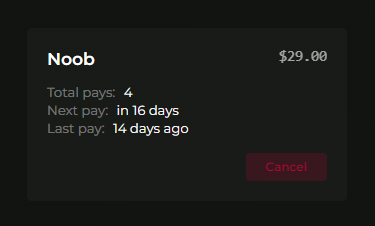
In this version, we have also enhanced the admin's subscription management page. This improvement allows you to easily view and manage users' subscriptions, including the next payment time, last payment time, and all payments collected through a subscription.
You can also check `Admin -> Setting -> Cronjob -> Logs` to see cronjob executions & their results
Note that making changes in your RKHM does not update Stripe's data. To ensure consistency, make changes in your Stripe dashboard and wait for RKHM's cronjob to retrieve the new data and update the subscriptions accordingly.
Stripe FAQ
1. How are cancellations handled?
A new cronjob runs every six hours to check for any canceled subscription plans on Stripe. If a subscription is canceled on Stripe, it will be automatically canceled on your RKHM as well
2. How are renewals managed?
The same cronjob checks for new payments from active subscription plans. If a new payment is collected, the subscription plan will automatically renew and extend on your RKHM. The subscription's expiration date, payment count, and next payment time will be updated accordingly
3. What happens if a user doesn't cancel but also doesn't have sufficient funds to renew?
The subscription is renewed only after verifying the payment of the new invoice. The script will check subscriptions up to 2 days after the renewal date. If Stripe does not collect the payment within those 2 days, the subscription will not be renewed and will not be checked again
4. When payments are collected?
The renewal time depends on when the purchase is made and the duration of the subscription plan. For example, if a user purchases a weekly subscription plan on a Thursday, they will be charged again the following Thursday. If a user purchases a yearly subscription plan on January 1, 2025, they will be charged again on January 1, 2026
5. How do I cancel a plan?
Go to your Stripe's dashboard, visit `Subscription`, find the user's email address or match the subscription ID to find the item. Cancel it. RKHM will automatically cancel that plan on your website when next Stripe's cronjob is executed